Leave requests in a few clicks – how it works in the portal
Allowance, request, approval: a step-by-step look at handling leave without phone calls.
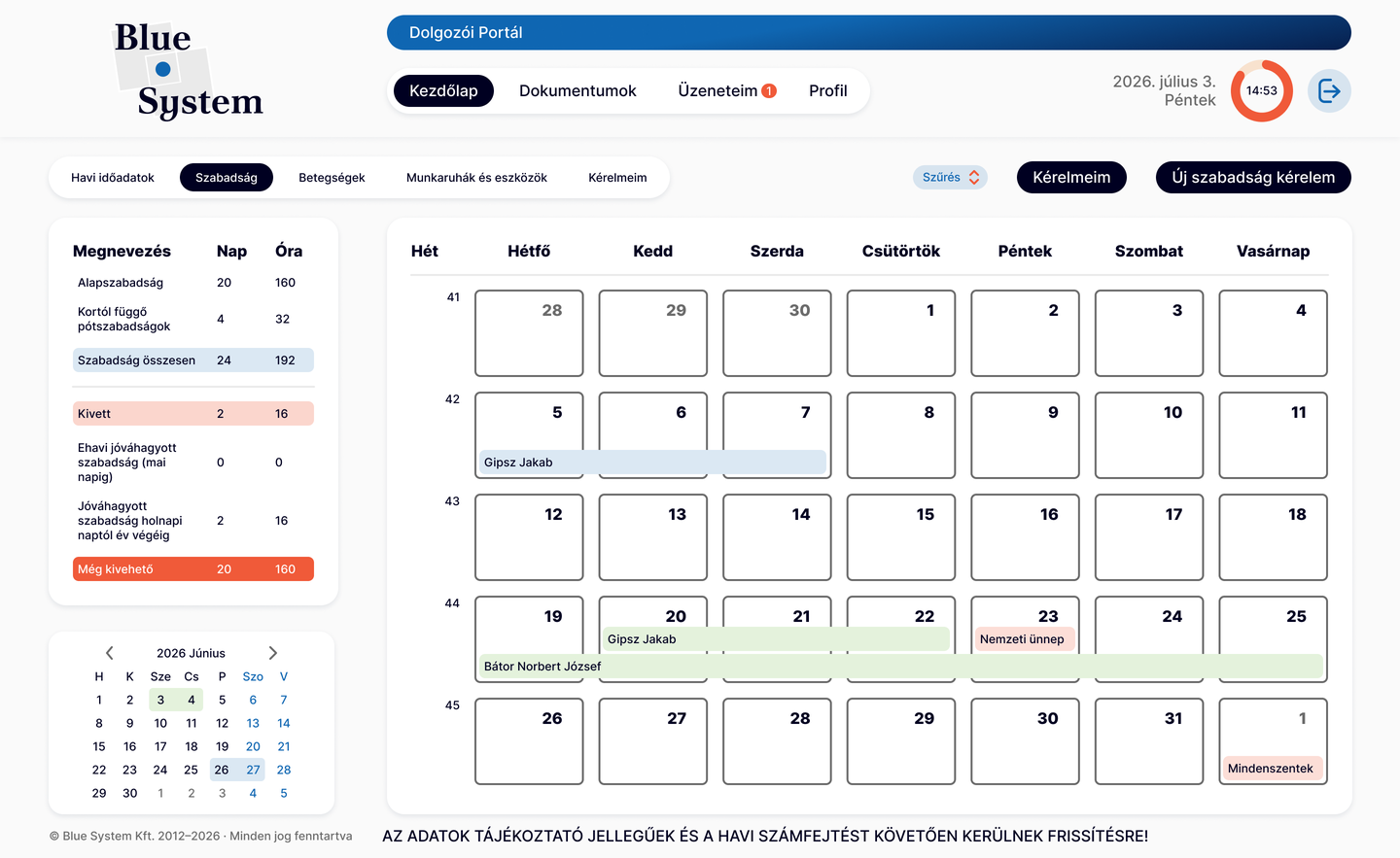
Handling leave is one of the most common HR tasks – and one of the ones that takes the most back-and-forth. In the Blue System HR portal, the whole process happens in one place, from allowance to approval.
1. Check your allowance
Under Leave, a table shows your basic leave, additional leave, days already taken and how much you can still take – in both days and hours.
2. Submit a request
Use the New leave request button to enter the first and last day. The request appears in the list straight away with the status New.
3. Your manager approves it
Managers see their team's incoming requests in the Requests menu and decide with one click. The request's status then changes to Approved.
4. If plans change
You can delete a request that hasn't been decided yet, and ask to withdraw one that has already been approved. The History button shows what happened to a request at any time.